Trading Tools

Hi Trader,
on this page you’ll find trading tools to download for free, indicators for the MetaTrader 4 platform, setup instructions and how to use them – in short, everything that can help enrich your toolbox.
This page will be alive, meaning I’ll keep updating it with new trading tools whenever I come across one that’s solid and profitable (of course 🙂 ).
If you want to stay up to date with the latest additions, subscribe to the newsletter.
As I’ve written in several posts on the blog, an indicator on its own can’t guarantee you anything – they’re just tools that, properly combined, can support your study and analysis.
Intelligence is not only knowledge, but also the skill to apply knowledge in practice. Aristotle
Gartley Harmonic Patterns
The first indicator I’m sharing helps you spot Gartley harmonic patterns (butterfly, bat, gartley…)
Click on the image to start the download.
Inside the zip file you’ll find two files; once extracted, copy them into the folder:
Program FilesMetaTrader 4MQL4Indicators
(inside the Program Files folder, the “MetaTrader” folder may have a different name depending on the broker you have your account with – some prefix the broker name to the platform name)
Then restart MetaTrader; once done, go to the menu Insert > Indicators > Custom
There you’ll find your indicator – select it and confirm.
Alternatively, from the MT4 menu click File and select Open Data Folder, then open the MQL4 folder and then the Indicators folder.
Copy the files in there, then restart MT4 and you’ll find the indicator in the menu Insert > Indicators > Custom
CCI Divergence Indicator
This very useful indicator graphically identifies the divergences between price and the CCI oscillator (Commodity Channel Index)
Click on the image to start the download.
Inside the zip file you’ll find the file; once extracted, copy it into the folder:
Program FilesMetaTrader 4MQL4Indicators
(inside the Program Files folder, the “MetaTrader” folder may have a different name depending on the broker you have your account with – some prefix the broker name to the platform name)
Then restart MetaTrader; once done, go to the menu Insert > Indicators > Custom
There you’ll find your indicator – select it and confirm.
Alternatively, from the MT4 menu click File and select Open Data Folder, then open the MQL4 folder and then the Indicators folder.
Copy the files in there, then restart MT4 and you’ll find the indicator in the menu Insert > Indicators > Custom
Check it out!
Candle Range Indicator
This indicator measures the range, in pips, of each candle. Works on all time frames.
Click on the image to start the download.
Inside the zip file you’ll find the file; once extracted, copy it into the folder:
Program FilesMetaTrader 4MQL4Indicators
(inside the Program Files folder, the “MetaTrader” folder may have a different name depending on the broker you have your account with – some prefix the broker name to the platform name)
Then restart MetaTrader; once done, go to the menu Insert > Indicators > Custom
There you’ll find your indicator – select it and confirm.
Alternatively, from the MT4 menu click File and select Open Data Folder, then open the MQL4 folder and then the Indicators folder.
Copy the files in there, then restart MT4 and you’ll find the indicator in the menu Insert > Indicators > Custom
Spread Indicator
This indicator measures the spread in real time, in tenths of a pip. Works on all time frames.
Click on the image to start the download.
Inside the zip file you’ll find the file; once extracted, copy it into the folder:
Program FilesMetaTrader 4MQL4Indicators
(inside the Program Files folder, the “MetaTrader” folder may have a different name depending on the broker you have your account with – some prefix the broker name to the platform name)
Then restart MetaTrader; once done, go to the menu Insert > Indicators > Custom
There you’ll find your indicator – select it and confirm.
Alternatively, from the MT4 menu click File and select Open Data Folder, then open the MQL4 folder and then the Indicators folder.
Copy the files in there, then restart MT4 and you’ll find the indicator in the menu Insert > Indicators > Custom
Wolfe Wave Indicator
This indicator automatically detects Wolfe patterns; works on any time frame.
You’ll find an article of mine on the topic by clicking here
Click on the image to start the download.
Inside the zip file you’ll find the file; once extracted, copy it into the folder:
Program FilesMetaTrader 4MQL4Indicators
(inside the Program Files folder, the “MetaTrader” folder may have a different name depending on the broker you have your account with – some prefix the broker name to the platform name)
Then restart MetaTrader; once done, go to the menu Insert > Indicators > Custom
There you’ll find your indicator – select it and confirm.
Alternatively, from the MT4 menu click File and select Open Data Folder, then open the MQL4 folder and then the Indicators folder.
Copy the files in there, then restart MT4 and you’ll find the indicator in the menu Insert > Indicators > Custom

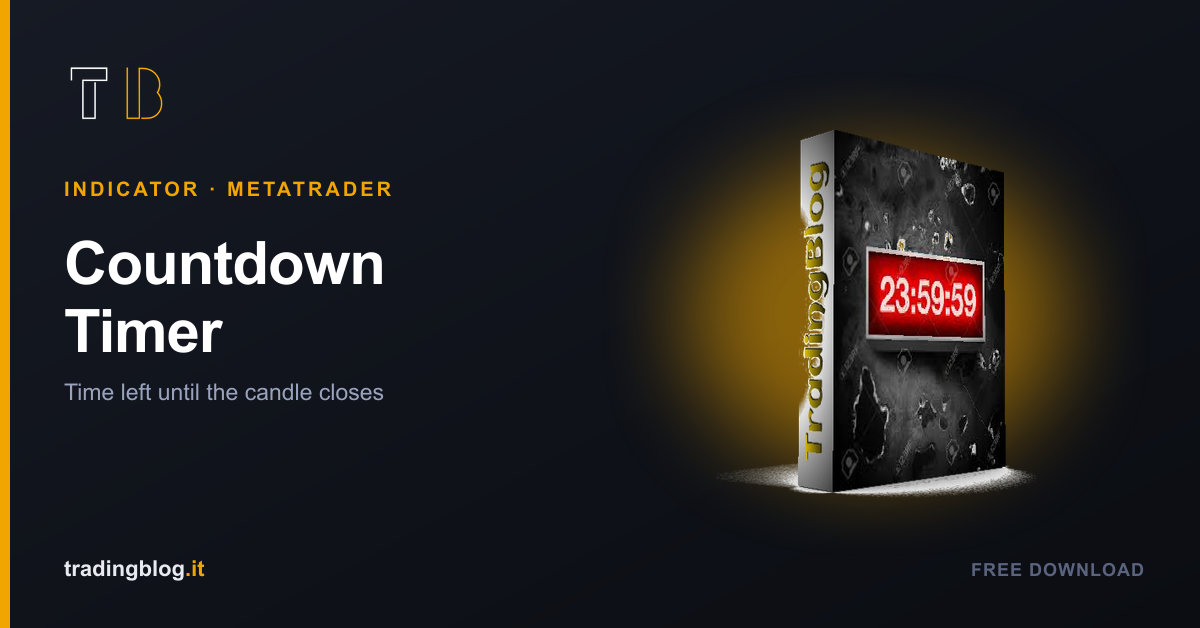
Countdown Timer
This indicator shows the time remaining, in minutes and seconds, until the candle closes.
Click on the image to start the download.
Inside the zip file you’ll find the file; once extracted, copy it into the folder:
Program FilesMetaTrader 4MQL4Indicators
(inside the Program Files folder, the “MetaTrader” folder may have a different name depending on the broker you have your account with – some prefix the broker name to the platform name)
Then restart MetaTrader; once done, go to the menu Insert > Indicators > Custom
There you’ll find your indicator – select it and confirm.
Alternatively, from the MT4 menu click File and select Open Data Folder, then open the MQL4 folder and then the Indicators folder.
Copy the files in there, then restart MT4 and you’ll find the indicator in the menu Insert > Indicators > Custom
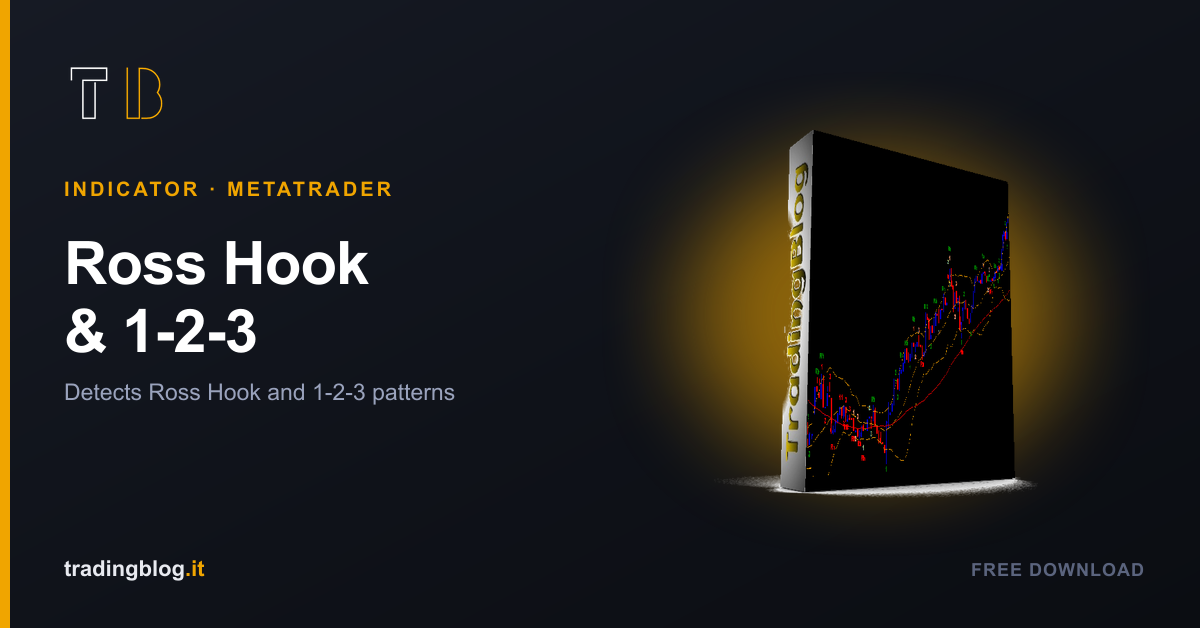
Ross Hook and 1-2-3 Pattern
This indicator detects the famous Ross Hook and the 1-2-3 pattern.
Click on the image to start the download.
Inside the zip file you’ll find the file; once extracted, copy it into the folder:
Program FilesMetaTrader 4MQL4Indicators
(inside the Program Files folder, the “MetaTrader” folder may have a different name depending on the broker you have your account with – some prefix the broker name to the platform name)
Then restart MetaTrader; once done, go to the menu Insert > Indicators > Custom
There you’ll find your indicator – select it and confirm.
Alternatively, from the MT4 menu click File and select Open Data Folder, then open the MQL4 folder and then the Indicators folder.
Copy the files in there, then restart MT4 and you’ll find the indicator in the menu Insert > Indicators > Custom
Want to put your market reading to the test?
Compete and challenge other traders inside an Arena in a demo environment, with no real capital at risk. Discover the Performance Arena Events by The Thunder Trader.